 WP Duet
The way to manage many WordPress sites without giving up your weekends is to stop treating each site as its own job. Put every site on the same routine: backups and uptime checks that run on their own, updates on a weekly schedule with a check afterwards, one short weekly review, and a monthly report that mostly writes itself. Then you only spend time on the sites that need you.
This post sets out that routine. It works with a spreadsheet and a calendar, with a management dashboard, or with a mix of both.
Start with an inventory
You can’t look after sites you haven’t listed. One row per site, with:
- the domain and the client it belongs to,
- the host and who holds the login (you or the client),
- where the domain is registered and when it renews,
- the plugins that matter most: shop, forms, page builder, membership,
- what you’ve promised the client: response times, backups, reports, and
- who at the client approves changes.
Most people find a site or two they’d forgotten about. Those are usually the ones running a plugin that hasn’t been updated in a year.
Decide what runs on its own
The aim is to automate the work that’s the same on every site, and keep your attention for the work that isn’t. A split that works for most agencies:
| Job | Automate? | Your part |
|---|---|---|
| Backups | Yes, nightly or weekly per site | Check for failures weekly; test a download every few months |
| Uptime checks | Yes, every few minutes | Respond to alerts |
| SSL and domain expiry | Yes, warnings in advance | Renew or chase the client |
| Low-risk plugin updates | Yes, weekly | Glance at the results |
| High-risk plugin and major core updates | No | Approve by hand after reading the changelog |
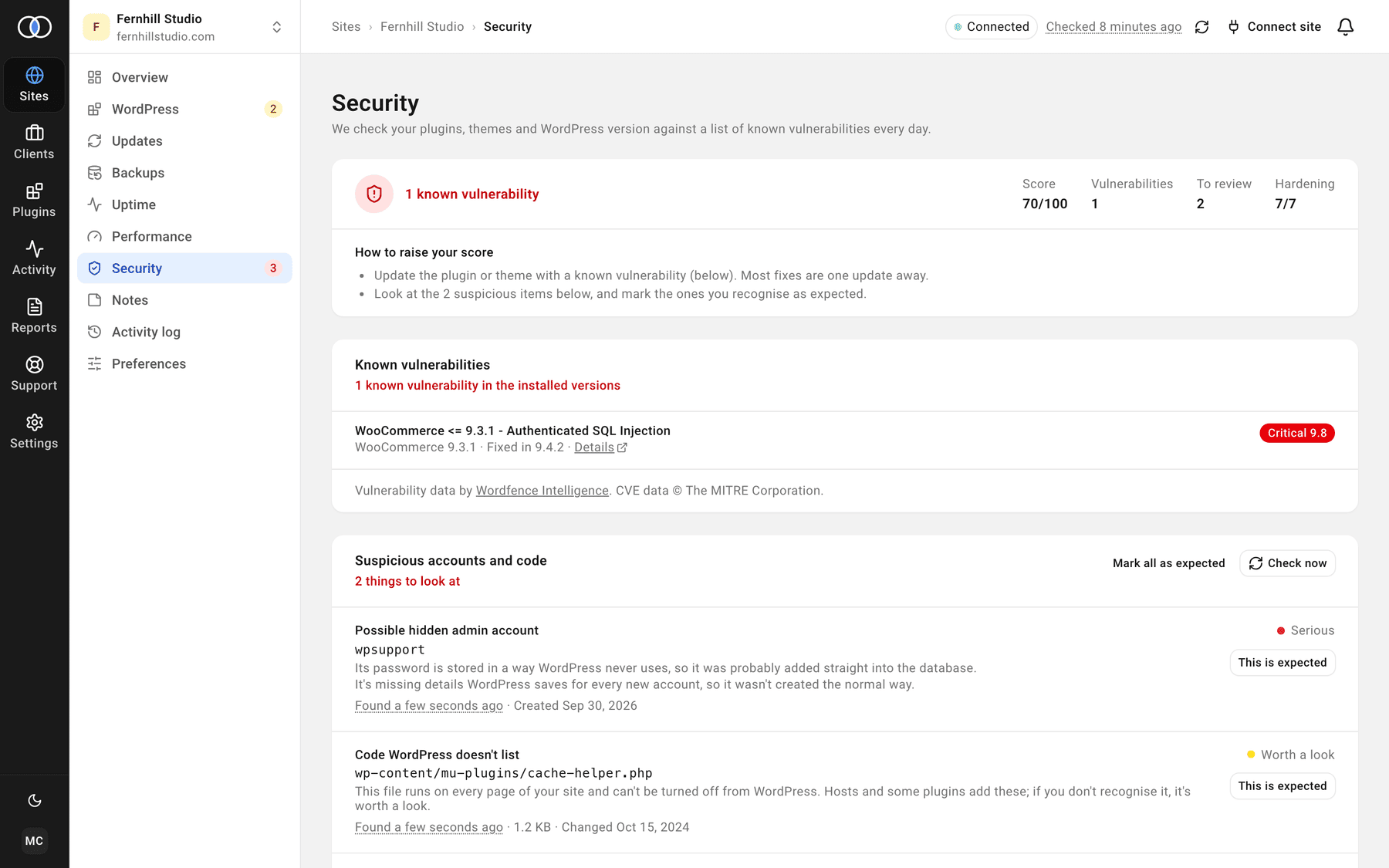
| Security checks | Yes, scanned for known vulnerabilities | Act on findings |
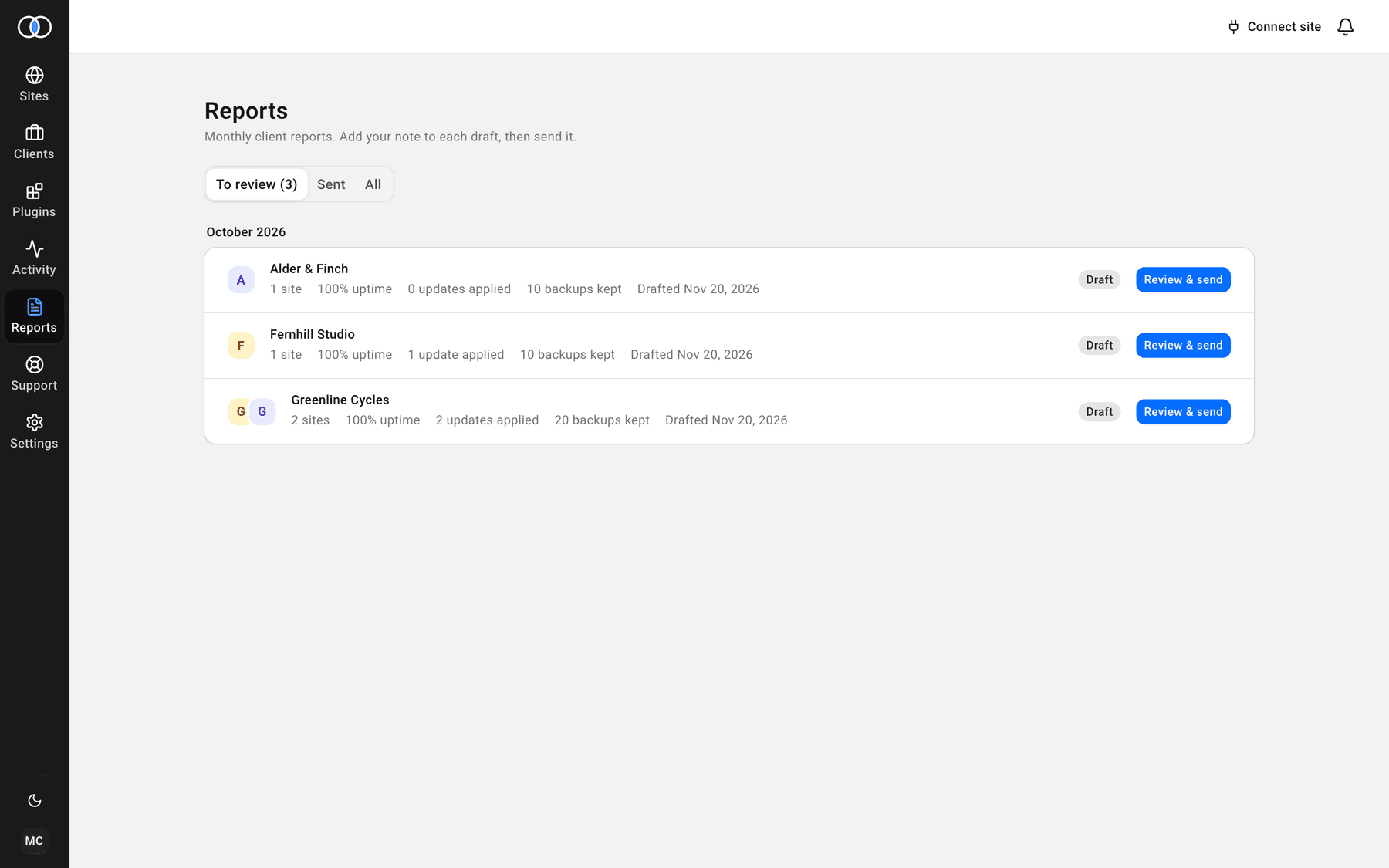
| Client reports | Draft automatically | Add a sentence of your own and send |
The weekly routine
Pick one morning a week. For 20 to 50 sites this takes about an hour once it’s set up.
1. Look at what failed, not what worked (10 minutes)
Scan for failed backups, sites that went down, SSL certificates or domains about to expire, and PHP errors. Ignore the green ticks. If your tools can’t show you just the problems across every site, that’s worth fixing first.
2. Review the update run (15 minutes)
Look at what updated automatically and whether anything was put back. Then deal with the updates waiting for approval: read the changelogs for the risky ones and approve or hold. Our post on safe plugin updates covers how to sort plugins by risk.
3. Act on security findings (15 minutes)
Known vulnerabilities in installed plugins come first, especially ones with a fix available. Then the slower work: old admin accounts, unused plugins left installed, missing hardening.
4. One site, a closer look (15 minutes)
Rotate through your sites, one per week. Click around it as a visitor, check its forms work, check page speed, look for broken links. Small problems you find this way are the ones clients notice and never mention.
5. Write down anything a client needs to hear (5 minutes)
Keep a running note per client. It becomes the human part of the monthly report.
The monthly routine
- Send the reports. Updates applied, backups taken, uptime, issues found and fixed, plus a sentence or two from your notes.
- Test one backup download. Rotate through clients so every site gets tested a few times a year.
- Check the inventory. New sites, retired sites, renewals coming up next month.
- Look at the whole fleet. The same plugin causing trouble on several sites is a sign to replace it everywhere.
When something breaks
Decide this in advance, so a 7pm alert doesn’t become a lost evening of guessing:
- Confirm it. Open the site yourself, on mobile data, not your office Wi-Fi.
- Check what changed. An update in the last hour is the first suspect; a host problem the second.
- Go back first, investigate later. Put the last update back, or go to the latest backup.
- Tell the client briefly, before they tell you.
- Write it down for the report.
If you work with others, agree who is on call for which hours. Alerts that go to everyone are often answered by no one.
Choosing tools for this
You can run this routine with separate tools: a backup plugin, an uptime service, and a spreadsheet. It works, but you end up checking several dashboards each week. A management dashboard puts the routine in one place. When you compare them, look at:
- whether backups are stored away from the host, and how long they’re kept,
- whether updates are checked afterwards, and what happens when one breaks a site,
- whether you can see just the problems across all sites,
- what the client report looks like, and
- the price at your site count today and in a year, including add-ons.
We’ve priced four of the main options at 5, 25 and 100 sites in ManageWP vs MainWP vs WP Umbrella vs WP Duet, and there are side-by-side pages under alternatives.
How WP Duet fits the routine
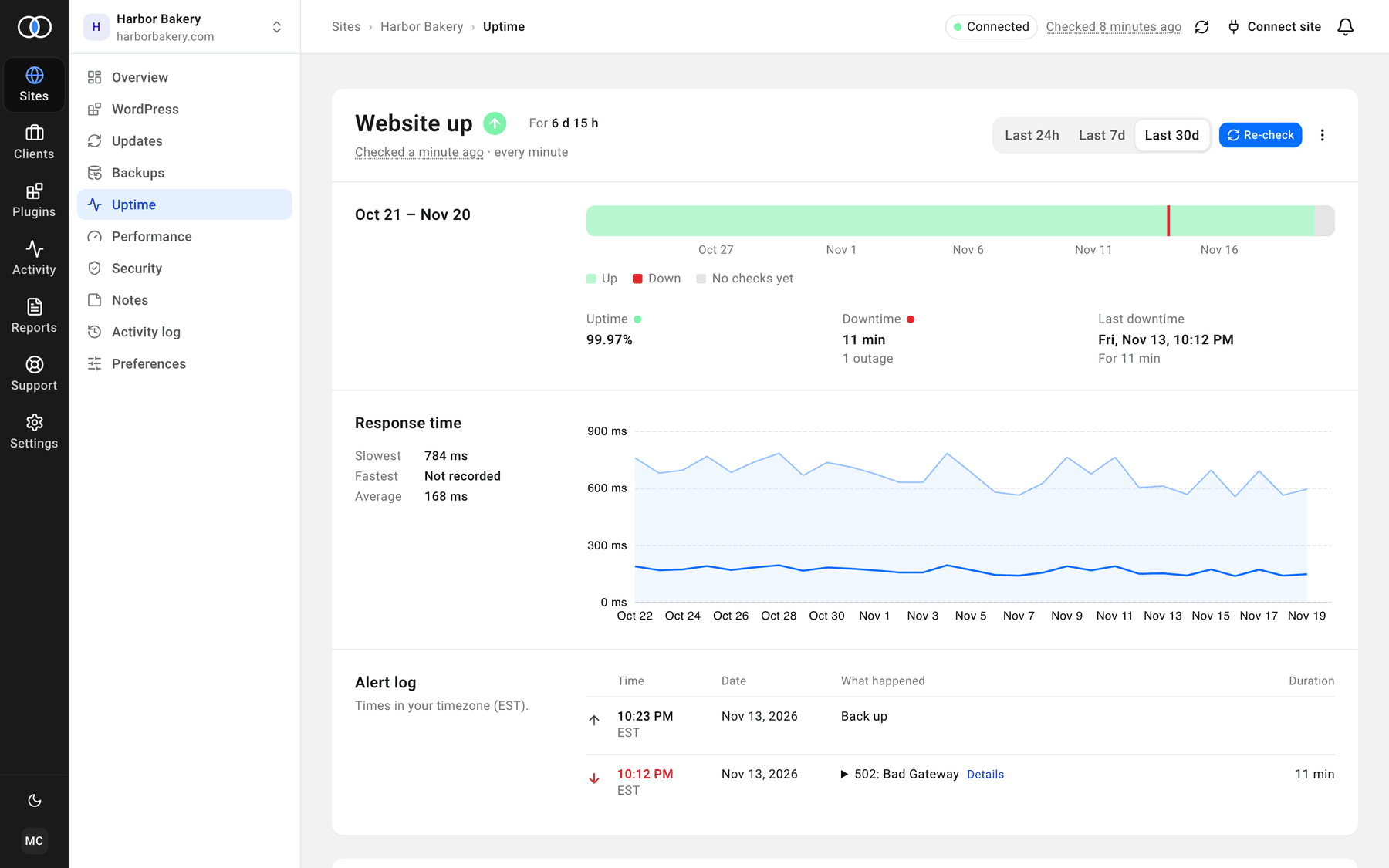
WP Duet was built around this kind of week. Each connected site is backed up nightly by default, stored away from its host and kept 30 days. Uptime is checked every 5 minutes by default, as often as every minute, with alerts by email and Slack and warnings before an SSL certificate or domain expires. Updates run on your schedule, each site is checked straight after an update, and the previous version is put back if the site breaks. Security checks look for known vulnerabilities and give each site a score from 0 to 100, and on the 1st of every month a client report is drafted in your brand colour for you to add a note to.
It’s $2 per connected site per month with all of that on every site, and team members are free. See the full list on features.
Whatever you use, the routine is the part that gives you your weekend back. If you’d like to run it in WP Duet, try it on a few sites for 14 days, no card needed.