 WP Duet
To update WordPress plugins without breaking client sites: take a backup first, sort plugins by how risky they are, let the low-risk ones update on a schedule, hold the risky ones for a quick review, check every site straight after it updates, and have a fast way back to the version that worked. The rest of this post is the detail behind each step.
None of this needs a particular tool. At the end we explain how WP Duet does the checking and the putting back for you, but the method works with anything, including doing it by hand.
Why updates break sites
Most broken updates come from a short list of causes:
- A conflict between two plugins, often a page builder and an add-on built for an older version of it.
- A PHP version mismatch. The new release needs a newer PHP than the host runs, and the site shows a fatal error.
- A theme that relies on the plugin’s old behaviour, such as WooCommerce template overrides.
- A failed or half-finished update, for example when the host times out mid-install.
- A database change you can’t undo by putting the old files back. Rare, but it’s why a backup comes first.
You can’t predict which update will cause trouble. You can make sure that when one does, you notice within minutes and the client doesn’t.
Step 1: have a recent backup before anything runs
Every update run should start with a backup that’s less than a day old and stored somewhere other than the site’s own host. If the update damages the database, putting old plugin files back won’t fix it, and the backup is your only way back. Our guide to backups for agencies covers what to check.
Step 2: sort plugins by risk
Not every plugin deserves the same care. Sorting them once saves time on every update run afterwards. A simple three-way split works for most agencies:
| Risk | Examples | How to update |
|---|---|---|
| Low | Small, single-purpose plugins: redirects, SVG support, cookie notices, SEO plugins on patch releases | Automatically, on a schedule |
| Medium | Forms, caching, security plugins, SEO plugins on major releases | Automatically, but check the site afterwards |
| High | WooCommerce and its extensions, page builders, membership and LMS plugins, anything with a custom integration | Approve by hand, after reading the changelog |
Treat WordPress core the same way. Minor releases (6.7.1 to 6.7.2) are security and bug fixes and are usually safe to apply automatically. Major releases deserve a look first.
Step 3: pick a time and a schedule
- Run updates when you can respond. A Tuesday morning run is better than Friday night, because you’re around if something breaks.
- Stagger busy sites. Run updates on your own site and a couple of low-traffic client sites first, then the shops a day later.
- Avoid the client’s busy hours. For a shop that’s their sales peak; for a booking site, the morning rush.
- Don’t wait too long on security fixes. If a plugin release fixes a known vulnerability, update that plugin now rather than on the next run.
Step 4: read the changelog for the risky ones
For high-risk plugins, spend two minutes on the changelog before you approve. Look for a major version number, the words “breaking”, “requires” or “deprecated”, a new minimum PHP or WordPress version, and database migrations. If a release came out today, waiting a few days lets other people find the bugs first.
Step 5: check the site straight after each update
This is the step most people skip, and the one that matters most. After each update, check that:
- The home page loads with a normal response, not an error page or a white screen.
- The page isn’t showing a PHP fatal error or the “There has been a critical error on this website” message.
- You can still log in to wp-admin.
- For shops and booking sites: one product page and the basket or booking form still load.
Checking after each update, rather than once after all of them, tells you exactly which plugin caused the problem. If you update twelve plugins and then find a broken site, you’re guessing.
Step 6: have a fast way back
When an update breaks a site, the priority is getting the client’s site working, not finding the cause. In order of speed:
- Put the previous version of that one plugin back. This fixes most cases in under a minute and leaves the other updates in place.
- Deactivate the plugin if you can’t get the old version and the site works without it.
- Go back to the backup if the update changed the database or several things broke at once.
Then tell the client what happened in a sentence, and try the update again later, once the plugin author has released a fix or you’ve found the conflict on a test copy.
Step 7: keep a record
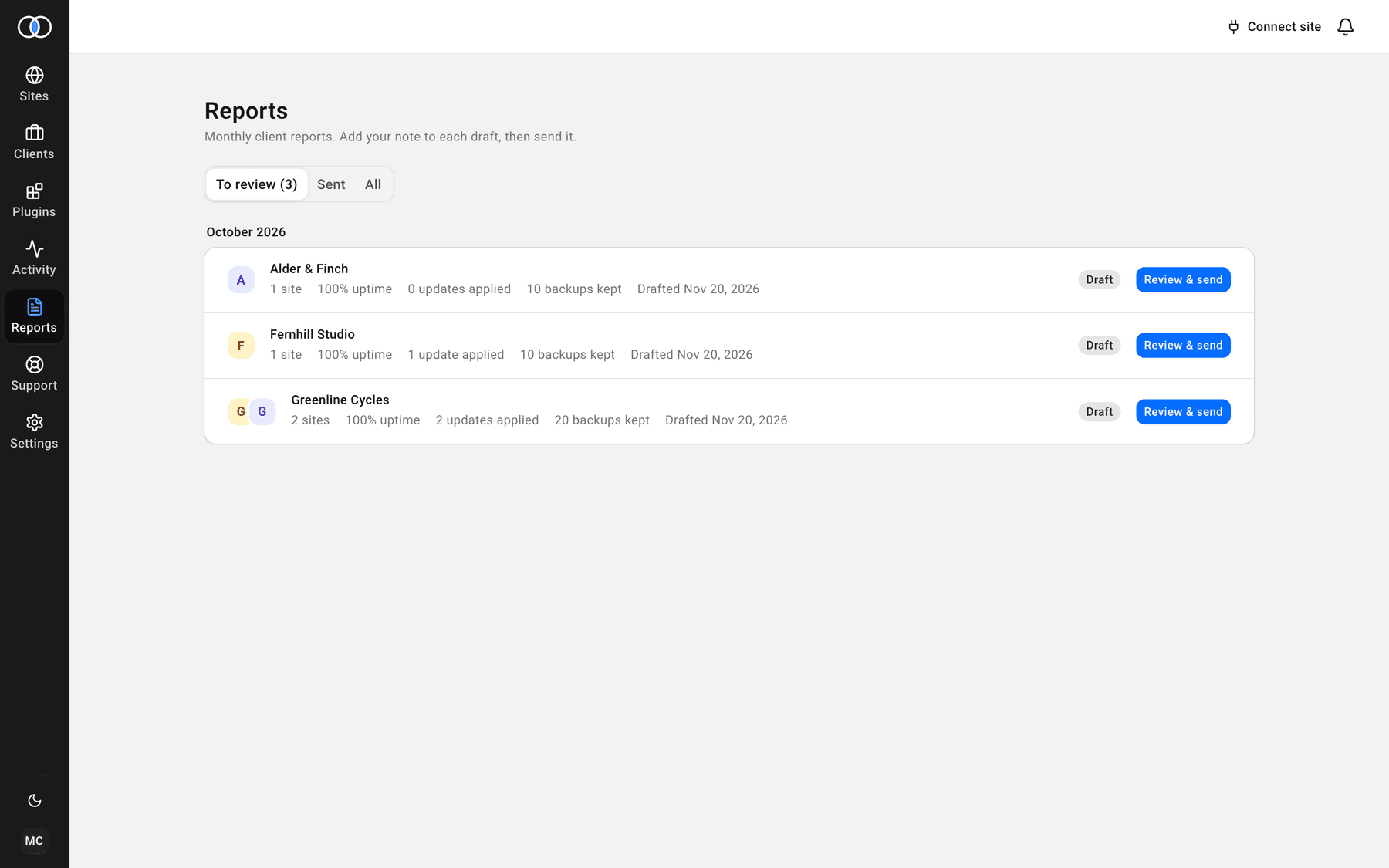
Log each update run: which plugins moved from which version to which, which ones were put back, and why. When a client asks why their site was slow on Tuesday, the answer is in the log. It also gives you a useful line for the monthly client report: “23 updates applied, one put back and retried after the author’s fix.”
How WP Duet does steps 5 and 6 for you
WP Duet runs plugin, theme and core updates on a schedule you set, or when you start them by hand. For each plugin you can choose to update automatically or to approve first, and major WordPress releases always wait for you.
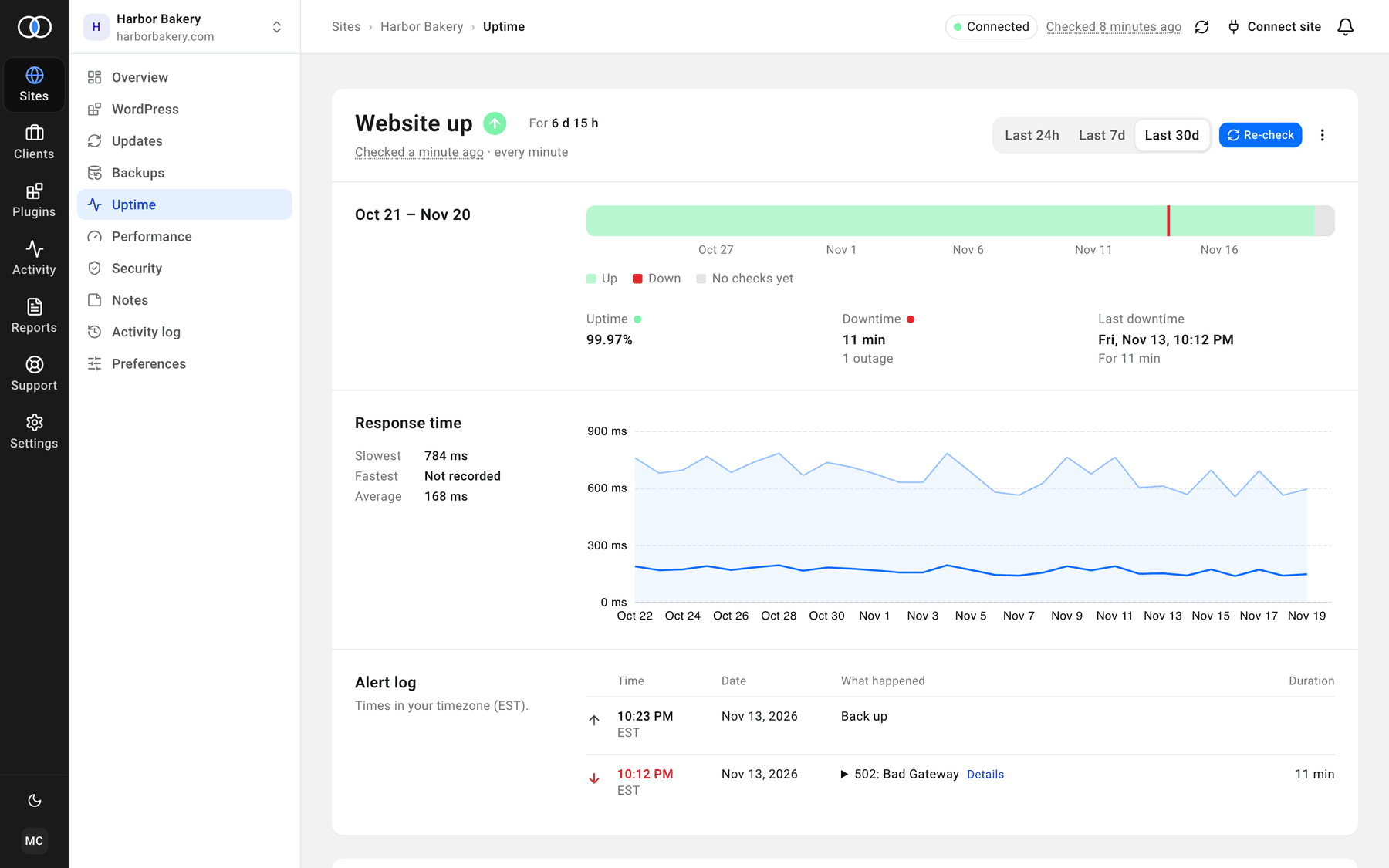
Straight after each update, WP Duet checks that the site still loads. If it doesn’t, it puts the previous version back and tells you which update it was, so you can look into it before trying again. Every run is kept in the site’s activity, with versions before and after. Backups run nightly by default, so there’s always a recent one stored away from the host.
A short checklist to copy
- A backup under a day old, stored away from the host
- Plugins sorted into low, medium and high risk
- Updates scheduled for a time you’re around
- Changelogs read for the high-risk plugins
- The site checked after each update, not after all of them
- A way to put one plugin’s previous version back in under a minute
- A log of what changed, for the client report
If you want the checking and putting back done for you, you can try WP Duet on a few sites for 14 days, no card needed. It runs next to whatever you use today.